
Analyze
Run a full project analysis and read the results.
When to use Analyze
- First pass on any project to get errors, warnings, and flowchart data.
- After enabling optional sources like PFI/SAE so the report includes those edges.
- Before sharing builds to catch regressions.
How to run
- Open the Control Center and choose Analyze.
- Pick your project folder if prompted.
- Start the run and wait for completion; progress appears in the panel.
What you get
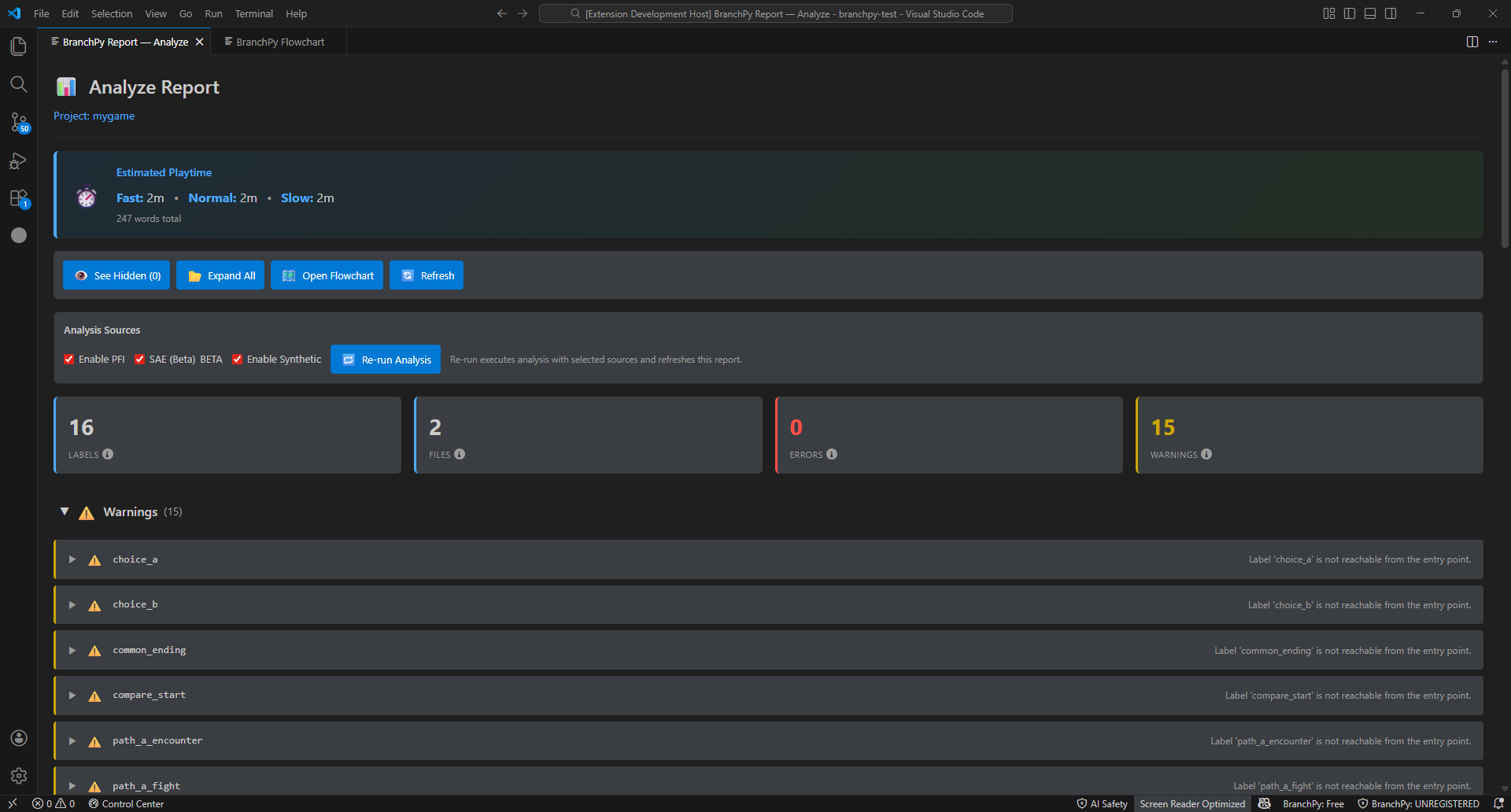
- Report summary with errors, warnings, and counts.
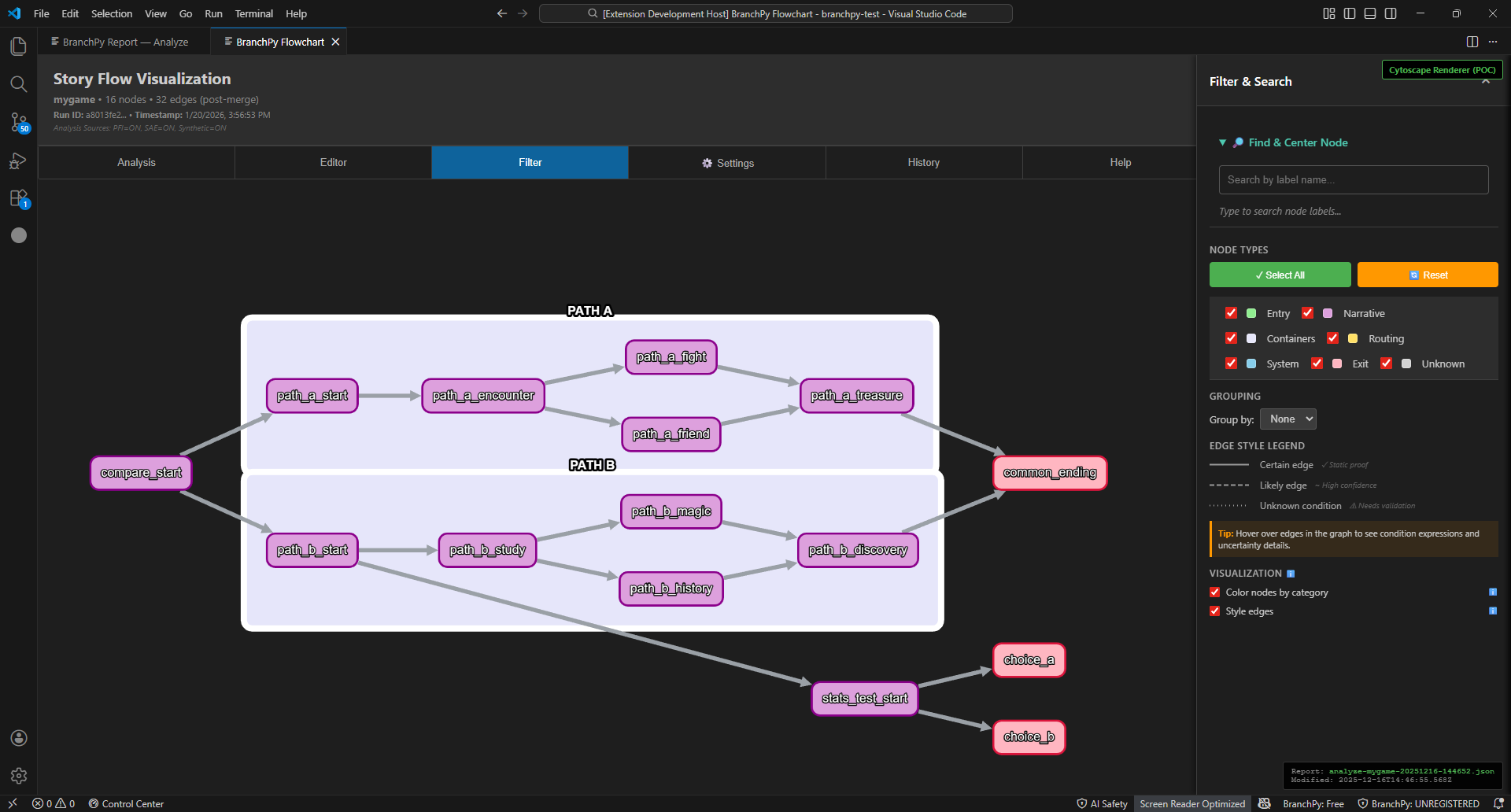
- Links to open Flowchart, Stats, and Compare from the same run.
- Download/export actions (JSON/HTML) when available.
When to re-run
- You turned on PFI/SAE or added observed traces.
- Source files changed since the last run.
- You see stale data in Flowchart or Stats after edits.
Tips
- Keep project root clean (no nested projects) to avoid slow scans.
- If the run fails, check the error message, then rerun; use Doctor if failures persist.
Learn more: Technical/analysis