
BranchPy Installation
Install BranchPy with the VS Code .vsix or the CLI. Windows + VS Code remains the recommended path for most users.
Windows — guided installer
Unzip your pre-release package, then double-click install_branchpy.bat. The installer detects Python, installs the package, offers to install the VS Code extension, and walks you to your first analysis — all automatically.
- Install Python 3.11+ if needed (python.org).
- Unzip your BranchPy package.
- Double-click install_branchpy.bat and follow the prompts.
- The installer offers to run your first analysis — accept to see results right away.
Upgrading: just run the installer again over your existing version. It detects the old version automatically and upgrades without questions.
macOS / Linux
chmod +x install_branchpy.sh
./install_branchpy.sh
Open a terminal in the unzipped pre-release package folder and run the commands above. The bash installer follows the same guided flow as Windows.
The CLI also works directly on macOS and Linux for terminal workflows, automation, and browser reports via --open.
python3 -m branchpy --project path/to/project analyze
python3 -m branchpy --project path/to/project flowchart --open
AI Features (optional)
BranchPy works fully without any AI dependencies. All core features — analyze, stats, flowchart, media validation — require no AI libraries.
If you want to enable optional AI-assisted features (code review, doc generation, warning explanations), install the ai extras group:
pip install "branchpy[ai]"
This installs openai, anthropic, and google-generativeai — the AI provider client libraries. These packages are not included in the base install to avoid burdening users who do not need AI and to keep the dependency footprint as light as possible.
In the VS Code extension, AI features are disabled by default. When you enable them in Settings, a dialog explains the extra dependencies and offers to install them for you. No AI packages are installed without your explicit consent.
- The game/ folder should contain .rpy files.
- Choose the project in BranchPy Control Center instead of assuming the active VS Code folder is already the correct target.
- If you open the wrong parent folder, Analyze may look empty or incomplete.
- With pip install -e ., local Python changes are picked up without reinstalling, but you still need to rerun the command to regenerate the HTML report.
Account and license
Create an account, then go to Profile → License and click Claim Ren'Py Free to unlock all commands.
branchpy license login
branchpy license status
branchpy license claim-renpy
In the CLI, account and license actions live under branchpy license ..., not as top-level commands.
First run in VS Code
When you open BranchPy for the first time, the Welcome to BranchPy panel opens automatically. Select your Ren'Py project folder — without an account you can explore the walkthrough; create a free BranchPy account to unlock full analysis.
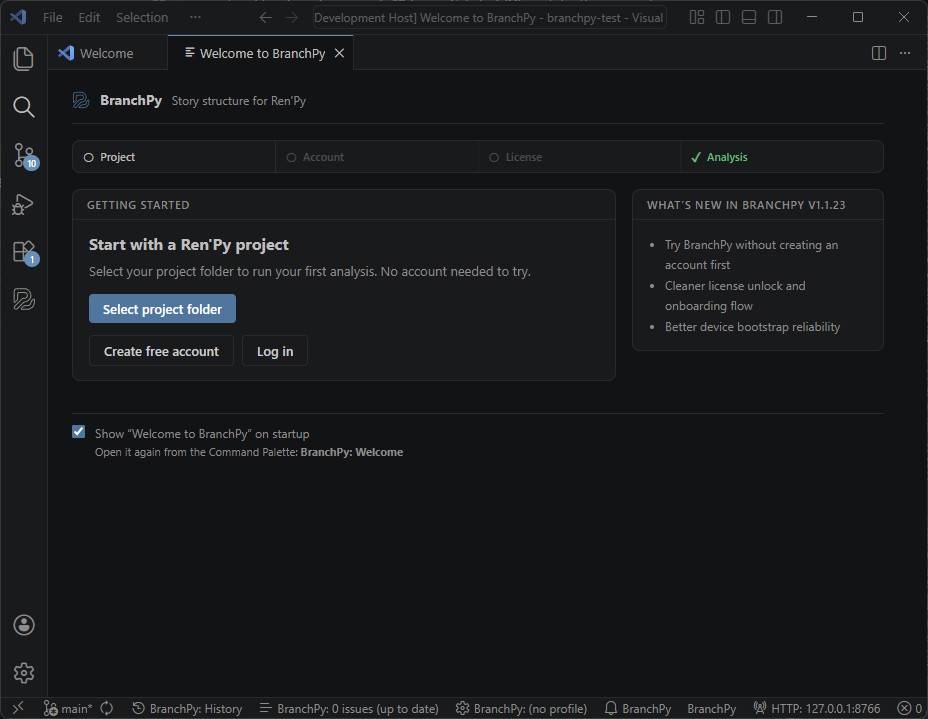
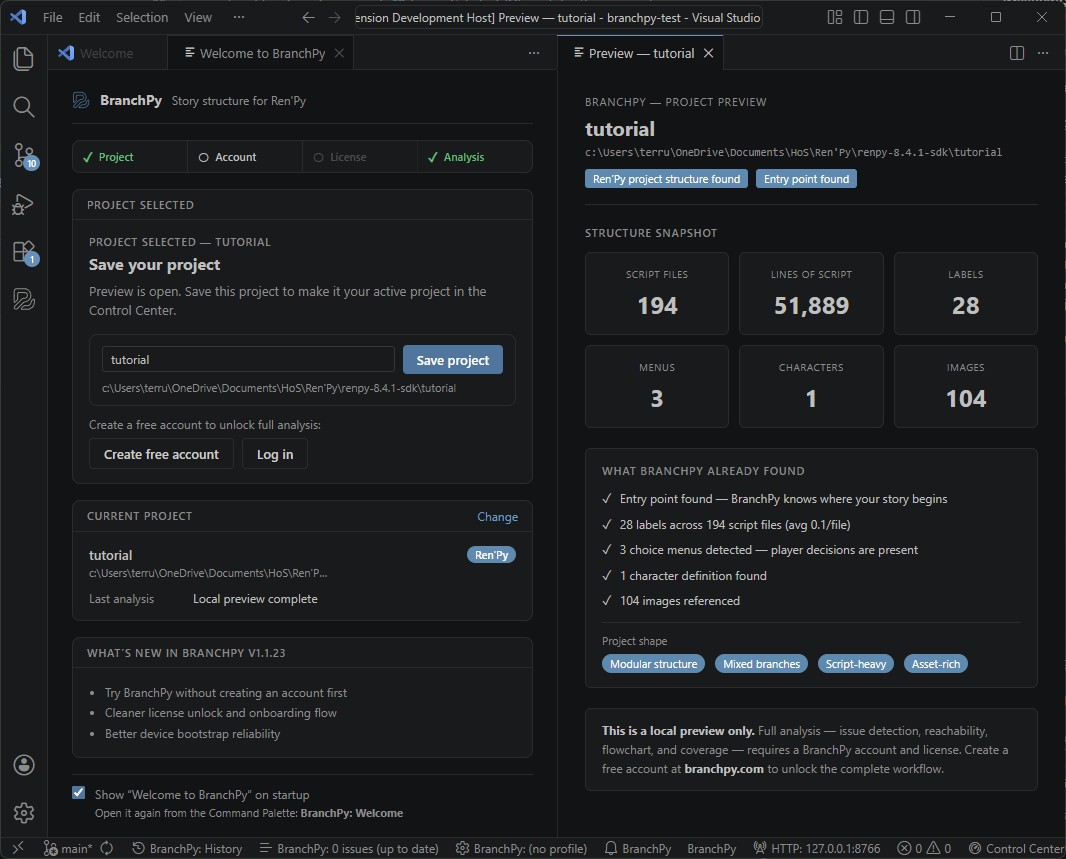
Reopen the panel at any time from the Command Palette: BranchPy: Welcome.