
Your Godot menu appears, the Play button is visible, but clicking it does nothing. The callback looks right. Before rewriting it, trace the chain that should reach it: the button emits an event, a connection names a receiver, and that receiver runs a method.
This guide focuses on Godot 4 signal wiring. It gives you a way to locate the broken step and shows where BranchPy Studio can help review the connections spread across a project.
1. Check the button you are actually running
Reproduce the problem through the same entry point a player uses. Note whether you launched the whole project or a single scene. Check the running scene tree in Godot and confirm that the visible button is the instance you expected.
In projects with an old menu, a pause menu, and a shared UI scene, it is easy to inspect one button while testing another. Write down the running scene and the node before following the callback.
2. Find where the connection is declared
Godot signals notify connected callbacks when an event occurs. You can connect them in the editor or in code. The official Using signals tutorial covers both approaches.
For an editor connection, select the button and inspect its signal connections. For a code connection, locate the setup call and check whether that code runs for this instance. Confirm the emitter, receiver, and method name. Having a method named _on_play_pressed in a script is not, by itself, evidence that the button is connected to it.
Use a simple note to keep the relationship explicit: “Menu/PlayButton → pressed → Menu._on_play_pressed”. If the receiver has moved or been replaced, review the connection against the new scene structure.
3. Review detected connections together
BranchPy Studio's Godot Graph View → Signal / Event Map brings together connections detected from script connect() calls and scene-file connection entries. Rows show the emitter, receiver callback, and source location where available.
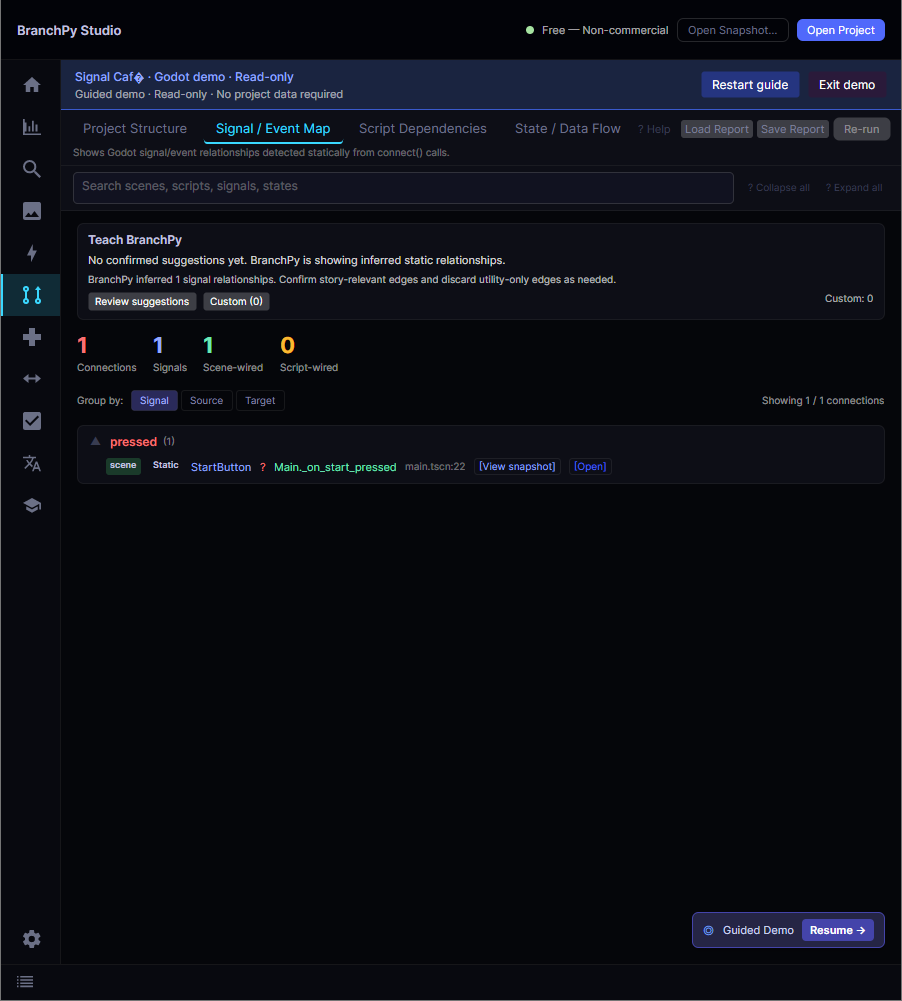
Search for the signal or callback, then choose a grouping that answers your question:
- Signal: review detected connections using a name such as
pressed. - Source: review the file where connections are declared.
- Target: review the detected receivers.
A name such as pressed can belong to many buttons. Match the emitter and source location as well as the name. A source grouping describes the declaration location; it does not necessarily identify the emitter's own script.
4. Separate a wiring problem from a callback problem
Set a breakpoint at the start of the expected callback in Godot and reproduce the click.
- The callback is reached: follow what happens inside it. Check early returns, conditions, and the operation it attempts.
- The callback is not reached: investigate the running instance, whether setup executed, and whether the button receives the interaction and emits the expected event.
This observation helps you choose the next investigation. A static connection row cannot tell you whether an input was intercepted, a node was replaced, or a runtime condition prevented setup.
5. Recheck the lifecycle after the fix
Test more than the first click after launch. Open the menu, leave it, return, and try again. If your UI is created dynamically, also test the creation path that originally failed. Review the map after changing connection code, then confirm the behavior in Godot.
A missing row can reflect a dynamic pattern the analyzer cannot resolve; it does not prove that no connection exists at runtime. Equally, a detected connection is evidence of declared wiring, not proof that the receiver is alive or that its callback works. Keep those two checks separate.
Explore the bundled Godot demo in BranchPy Studio to try Signal / Event Map. For your own project, check the eligible Godot plans. Analysis reads your project without rewriting source files; the runtime checks remain part of your Godot workflow.