
You return to a Godot project after a few weeks away. There are three menu scenes, a loading screen, and a script called GameManager. You want to change where the Play button sends the player. Before editing anything, you need to answer a smaller question: what currently leads where?
Start by separating scene navigation, file dependencies, and events. Each describes a different relationship. Reviewing them separately gives you a useful map for the refactor and a concrete list of things to test afterward.
1. Start with the project's entry point
In Godot, check the configured main scene and the autoload list in Project Settings. Open the main scene and identify the script handling the first player action. If an autoload controls navigation, include it in your review: autoloads can remain available across scenes and manage scene switching. See Godot's autoload documentation.
For this review, write down three things: the starting scene, the action that leaves it, and the intended destination. A small note such as “Play → loading screen → first level” is enough to give your investigation a direction.
2. Separate “loads this file” from “goes to this scene”
A script can load a scene as a resource without switching the game to it. A scene can also contain instances of other scenes. Treating every reference as navigation produces a misleading picture.
- Scene navigation: where a script asks the game to go next.
- Script dependencies: files a script loads or preloads.
- Signal connections: which callback responds to an event.
Suppose a menu script preloads a settings dialog and changes to the first level when Play is pressed. The dialog belongs on your dependency checklist; the first level belongs on your navigation checklist. Opening the dialog and entering the level are different test cases.
3. Review the relationships in BranchPy Studio
In Studio's Graph View, Godot projects have separate Project Structure, Script Dependencies, and Signal / Event Map views. Project Structure presents scene transitions inferred from script calls and confirmed relationships. Script Dependencies shows detected load() and preload() references.
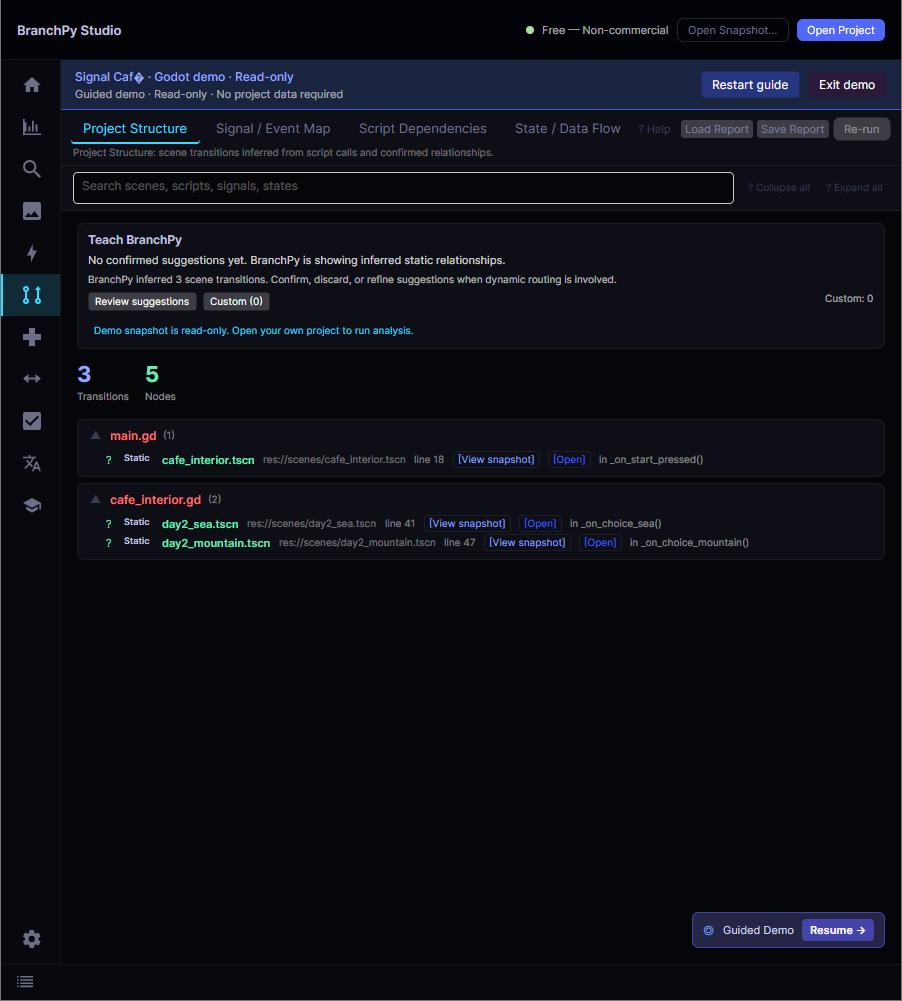
Find the script you plan to change. Review its listed destinations, then check the files it loads. Use the displayed source locations to inspect the relevant code in your editor. If a transition is marked as inferred, verify that it represents the intended route before relying on it.
4. Turn the map into a small test plan
For the menu example, your review might produce this checklist:
- Start the game normally and use Play to enter the intended level.
- Open and close Settings without leaving the menu.
- Return to the menu from gameplay, then press Play again.
- If Continue uses saved progress to choose a destination, test a saved game as well as a new game.
Make one coherent change, review the updated relationships, and run these paths in Godot. Keep the checklist with your change so another developer can repeat it.
What an incomplete map means
A destination assembled from variables, loaded through custom routing code, or chosen from saved data may not be resolved by static analysis. An absent relationship does not prove a scene is unused. A visible relationship does not prove a player can reach it in every game state.
For reusable scenes, also inspect assumptions about parents and node paths. Godot's scene organization guide explains why dependencies on a scene's surroundings can make reuse fragile. Use the map to decide where to look, then confirm behavior in the running game.
The bundled Godot demo lets you inspect these views without supplying your own project. Analysis of your own Godot project requires an eligible Godot plan; capabilities vary by engine. BranchPy's analysis does not rewrite your source files.