
Excusez-nous — cette page est actuellement disponible en anglais uniquement.
La traduction française n'est pas encore prête. Le contenu ci-dessous est la version anglaise la plus récente.
Run a full project analysis and read the results.
When to use Analyze
- First pass on any project to get errors, warnings, and flowchart data.
- After changing advanced analysis options so the latest report reflects the current project state.
- Before sharing builds to catch regressions.
How to run
- Open the Control Center and choose Analyze.
- Pick your project folder if prompted.
- Start the run and wait for completion; progress appears in the panel.
What you get
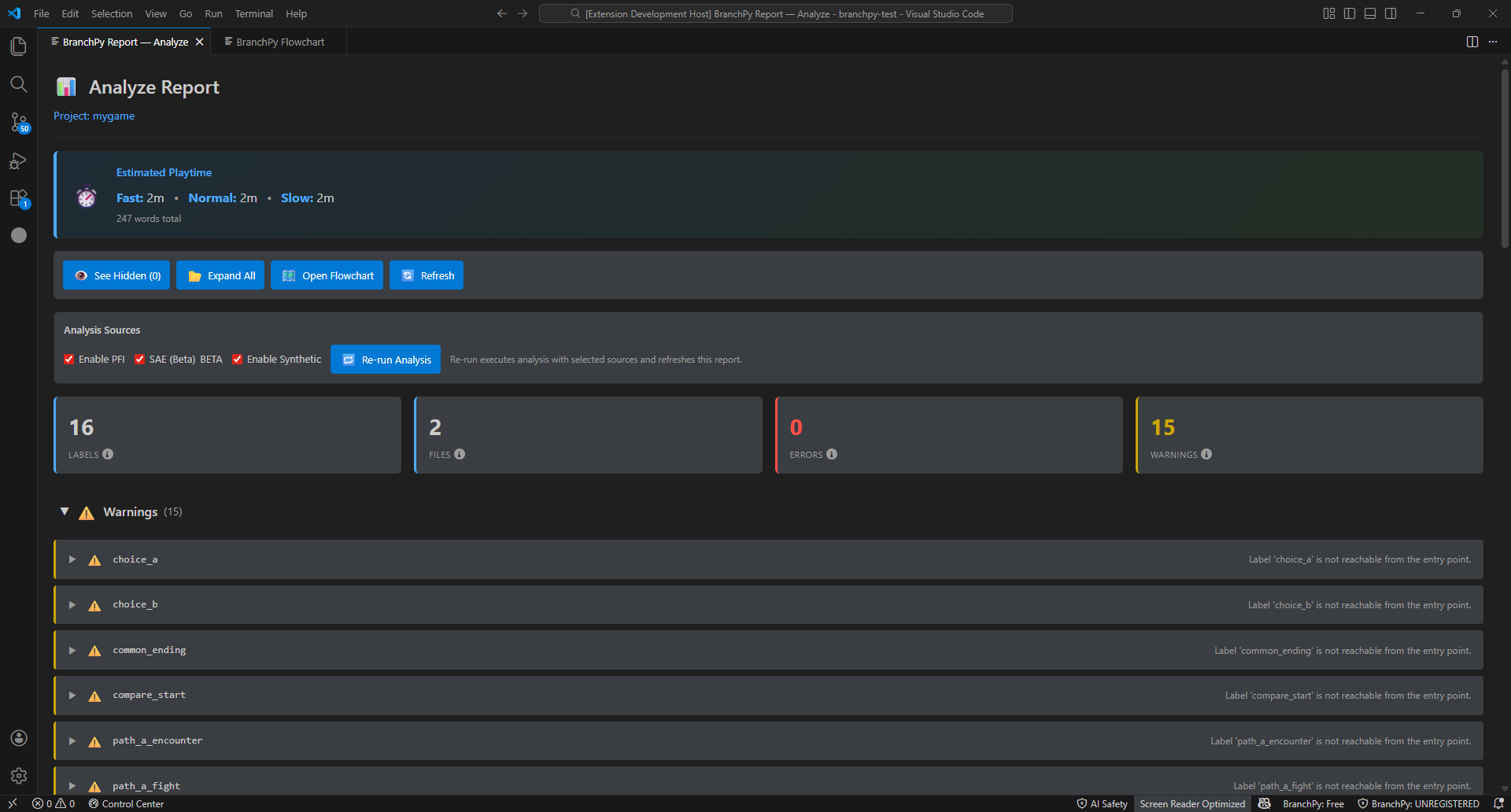
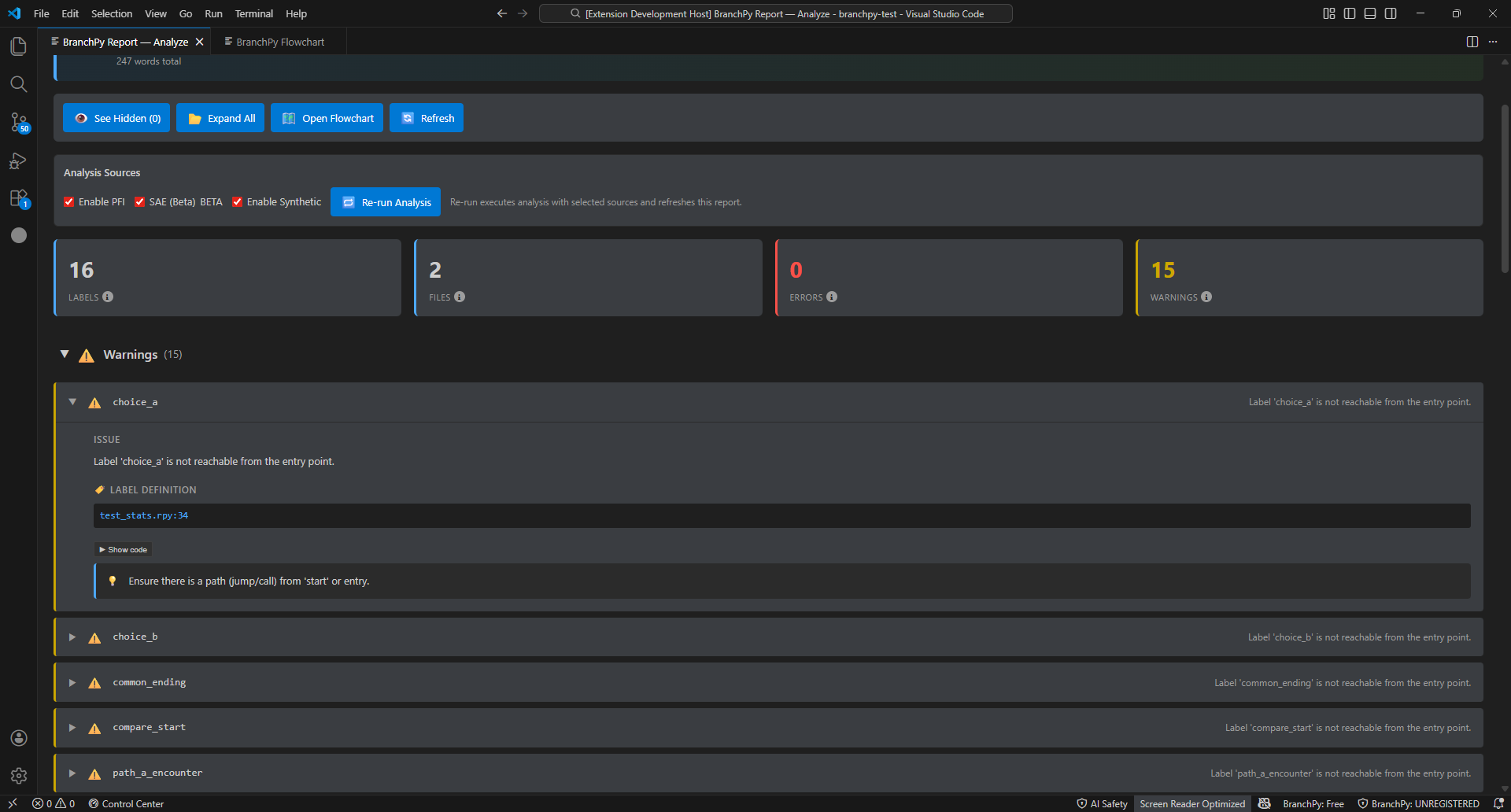
- Report summary with errors, warnings, and counts.
- Links to open Flowchart, Stats, and Compare from the same run.
- Download/export actions (JSON/HTML) when available.
When to re-run
- You changed advanced analysis options or project inputs.
- Source files changed since the last run.
- You see stale data in Flowchart or Stats after edits.
Run via CLI
branchpy --project <path> analyze --openCommon options:
branchpy --project <path> analyze [--format text|json|html] [--save-report] [--out <dir>] [--json]To include a function index in the analysis output:
branchpy --project <path> analyze --export-functionsThis runs PFI (Project Function Index) as part of the Analyze pipeline and adds a function summary to the report. See Function Manager for standalone function analysis.
Tips
- Keep project root clean (no nested projects) to avoid slow scans.
- If the run fails, check the error message, then rerun; use Doctor if failures persist.
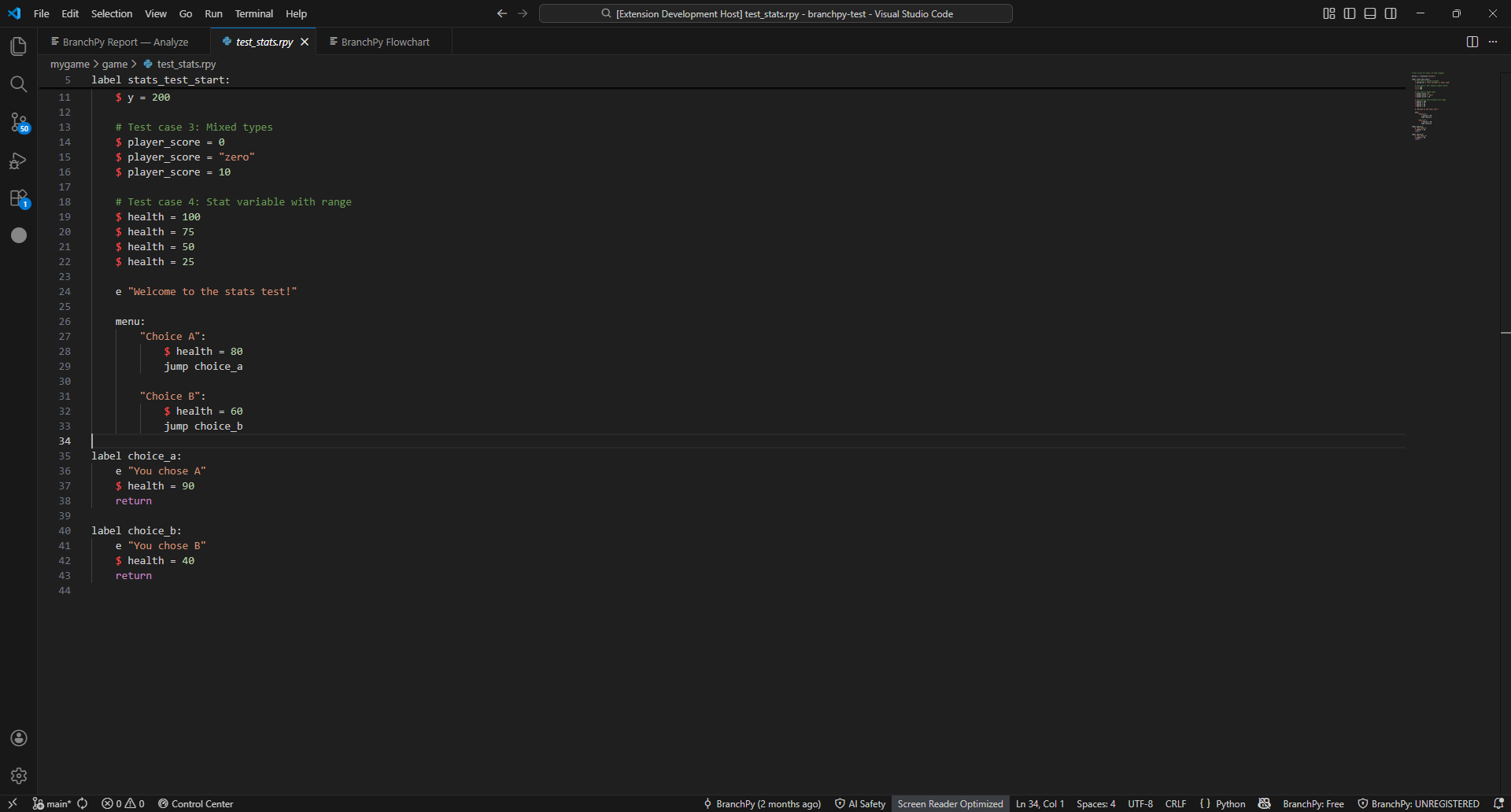
- BranchPy automatically builds an internal flow model of your game on every Analyze run. You don’t need to configure anything — it powers reachability checks, Flowchart, Pilot, and Omega.
Advanced pipeline (each step builds on the previous):
branchpy analyze   →  resolves labels, detects issues, builds navigation data
branchpy pilot     →  enumerates paths, tracks variables
branchpy omega     →  derives bounds and co-occurrence
FlowchartPlus Narrative mode in the VS Code Control Center requires all three.
Learn more: Technical/analysis