
Excusez-nous — cette page est actuellement disponible en anglais uniquement.
La traduction française n'est pas encore prête. Le contenu ci-dessous est la version anglaise la plus récente.
Most users do not need this command for everyday workflows. Pilot is an advanced exploration tool for path-focused analysis and variable tracking. Start with Analyze and Flowchart � come back to Pilot when you need to trace specific variable states across story paths.
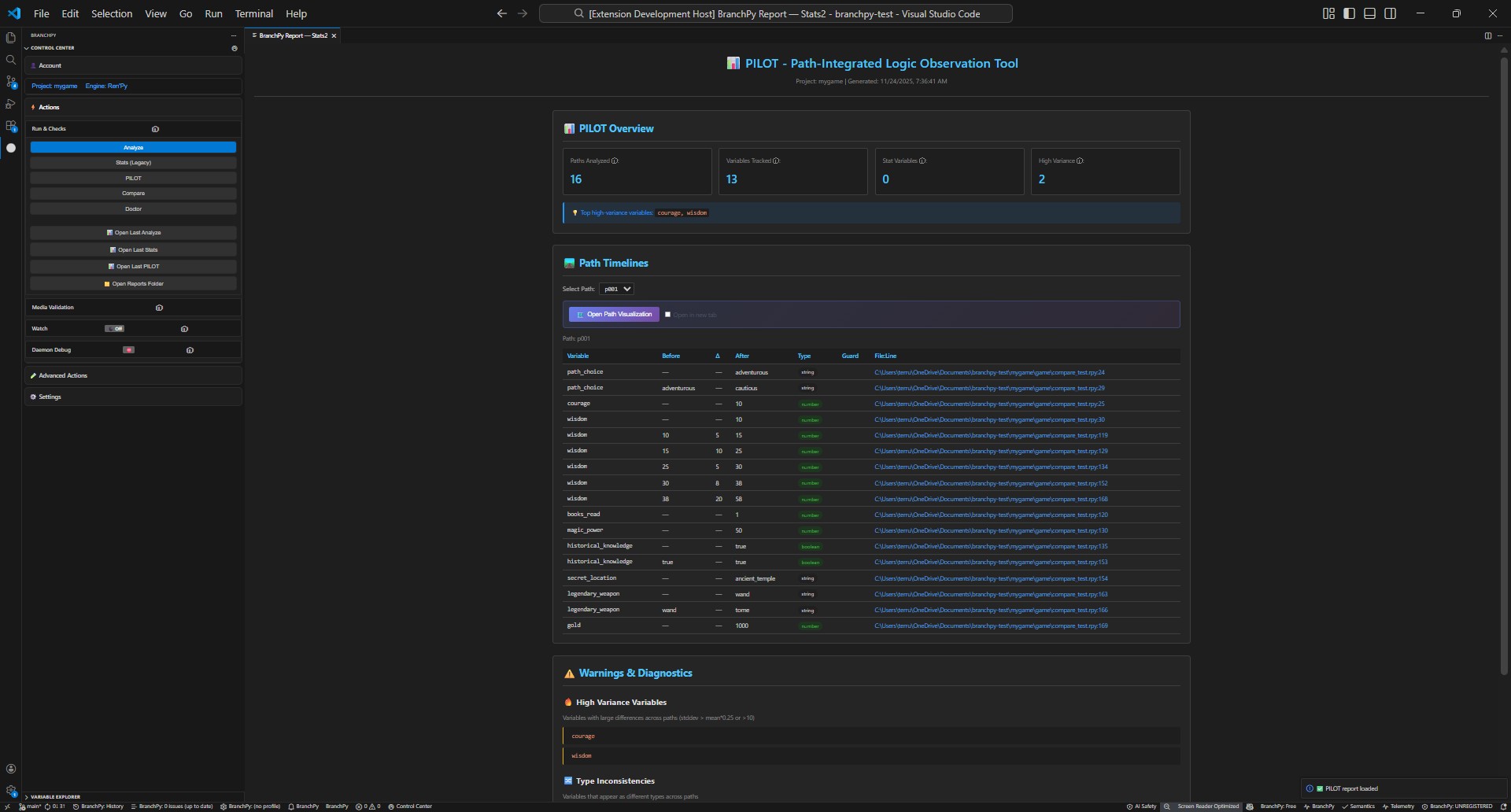
Run an experimental path-focused analysis with variable tracking before deeper review.
What Pilot is for
- Exploring likely narrative paths while you iterate on scripts.
- Seeing variable changes alongside path output in a faster, more exploratory pass.
- Getting an experimental preview before deeper analysis and review.
Typical workflows
- Edit a scene -> run Pilot to inspect path impact before a full review.
- Try a refactor -> Pilot to confirm the path shape still makes sense, then Analyze when stable.
- Rapid iterations in watch-like loops without long waits.
What Pilot changes (and what it does not)
- Focuses on path-oriented output and variable tracking for exploratory review.
- Remains experimental in v1.1.1.
- Does not replace full Analyze for release checks, canonical reports, or final counts.
How to run (UI)
- Open the Control Center and select Pilot.
- Choose your project if prompted.
- Start the run; review paths, variable chips, and any early warnings.
Entry resolution
Pilot needs a starting label to begin path exploration. The label it uses � and how it found it � is shown in a strip at the top of the Pilot report panel, just above the run statistics.
How Pilot chooses an entry
| Situation | What Pilot uses |
|---|---|
Your project has a label named start |
start is used automatically |
No start label exists |
The first label found in the project |
| You have configured an entry override in Settings | Your configured label (if found) |
| Your configured override label is not found | Falls back to auto-detection; the strip shows a warning |
The entry resolution strip
The strip in the Pilot report tells you exactly what happened:
- ?? Entry used � the label that was actually used as the starting point. Click it to jump to that label in your source.
- ? Override � shown when you have configured a specific entry label in Settings. A green ? means the override was applied; an amber ? means the label you set was not found and Pilot fell back.
- Other roots � if your project has multiple labels that could serve as starting points, they are listed here so you can see what else exists.
Configuring an entry override
If your project does not use start as its opening label (for example, it uses chapter1 or act_one_start), configure the override in the Pilot section of BranchPy Settings:
Settings ? Pilot ? Narrative Entry Label
Set it to the label name you want Pilot to use as its starting point. This also sets the entry for Narrative Paths analysis.
Note: The entry setting controls where path exploration begins. Projects with multiple independent story roots (parallel routes that do not share an entry point) may see the override strip suggest candidate labels you can switch to.
Run via CLI
branchpy --project <path> pilotPilot is an advanced command. It requires a prior analyze run and is best used from the Control Center, but the CLI is fully functional.
Common options:
branchpy --project <path> pilot [--max-paths <N>] [--max-depth <N>]Note: Pilot behavior may evolve between minor versions as the analysis model matures. It is not recommended for use in automated CI pipelines in v1.1.1.
When to follow with Analyze
- Before sharing or merging changes.
- When you need updated Flowchart, Stats, or Compare outputs.
- When you need the canonical full-project report.
Learn more: Technical/cli