Version-locked for BranchPy v1.1.3 (Updated March 2026)
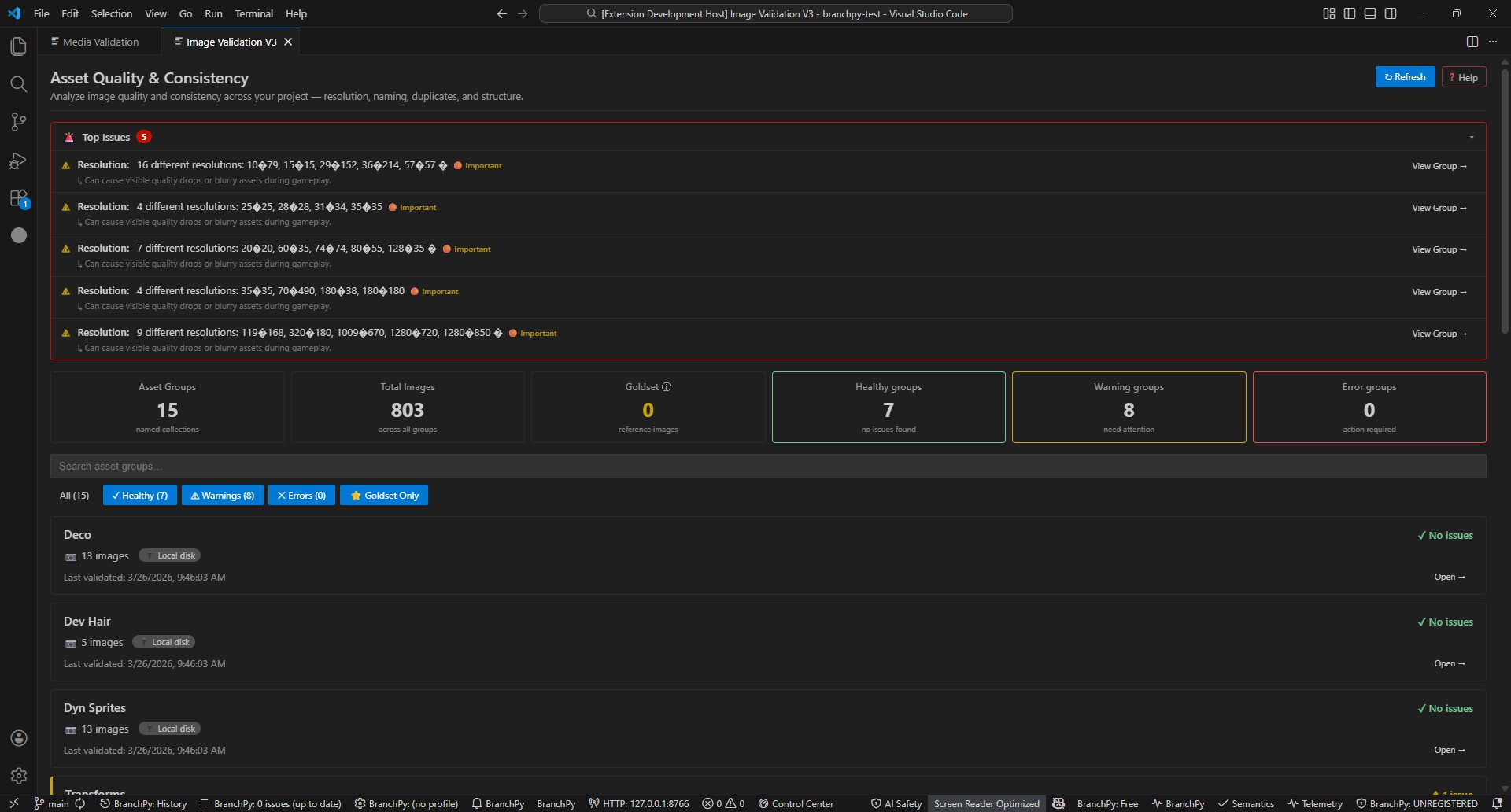
Analyze image quality and consistency across your project — resolution, naming, duplicates, and structure.
Image Validation vs Media Validation
BranchPy has two separate image-related panels with different purposes:
| Image Validation | Media Validation | |
|---|---|---|
| Focus | Image quality — resolution, naming, duplicates, structural consistency | Asset inventory — which files are referenced, missing, or unused |
| Input | Scans image files on disk | Compares disk contents against script references |
| Output | Quality warnings grouped by asset group | File status: Used / Unreferenced / Missing / Protected |
| When to use | Before release, after importing new art | Before release, after large art/audio imports |
Use both for a complete picture before a release build.
Opening Image Validation
- Open your project in VS Code and select it in the BranchPy Control Center sidebar.
- Run Analyze at least once.
- Open Image Validation from the Control Center or the BranchPy command palette.
The panel scans your project folder automatically on open. No configuration is required.
Understanding asset groups
BranchPy groups your images by folder structure and asset type. Groups are derived automatically from discovered assets — no vault or config setup needed.
Example groups for a typical Ren’Py project:
Characters— sprites and expression layersBackgrounds— scene backgroundsUI— interface elements, buttons, iconsOther— images that don’t form a natural group (small isolated folders merged together)
The summary header shows counts across all groups:
- Asset Groups — number of named collections
- Total Images — images scanned across all groups
- Healthy / Warning / Error groups — validation status per group
Validation status
| Status | Meaning |
|---|---|
| ✓ Healthy | All images in the group passed every check |
| ⚠ Warning | Non-blocking issue found (see below) |
| ✕ Error | Blocking problem detected |
What gets checked
For each asset group, BranchPy checks:
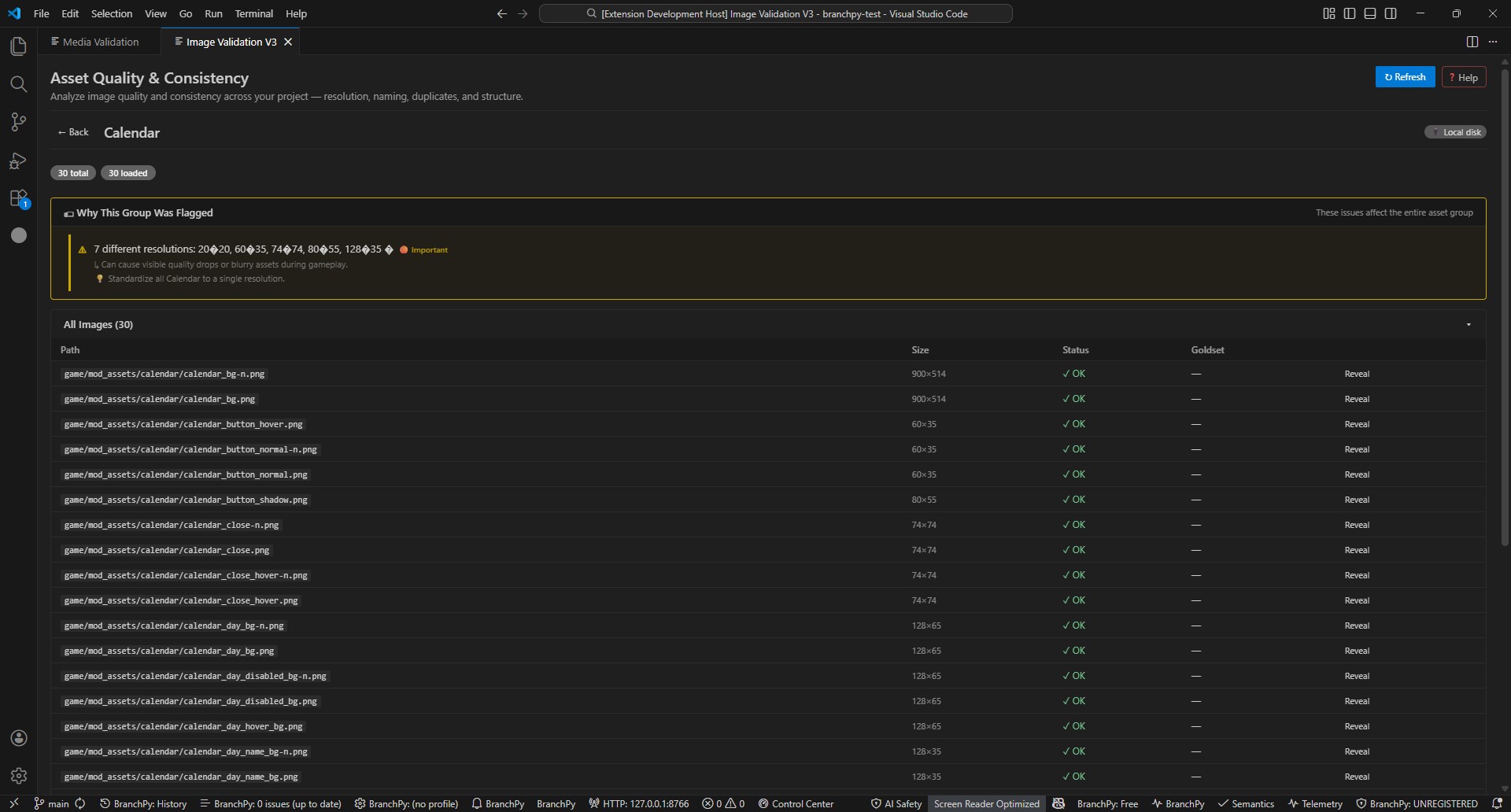
Resolution consistency — flags groups where images use mixed dimensions (e.g., some at 1280×850, others at 1920×1080). This indicates assets that were scaled at different times or from different sources.
Naming conventions — flags groups that contain a split between two naming styles (e.g., some files use underscores like alice_normal.png, others use hyphens like alice-angry.png). Files that mix both separators in the same name are not flagged as a conflict.
Duplicate detection — flags byte-identical copies of the same image that exist in the same group under different filenames.
Severity tiers
| Tier | Meaning |
|---|---|
| 🔴 Critical | Fix before release. May cause runtime errors or visible asset failures. |
| 🟠 Important | Fix soon. Affects visual quality or consistency. |
| 🟡 Minor | Low risk. Clean up when convenient. |
File actions
From any image in the detail view you can:
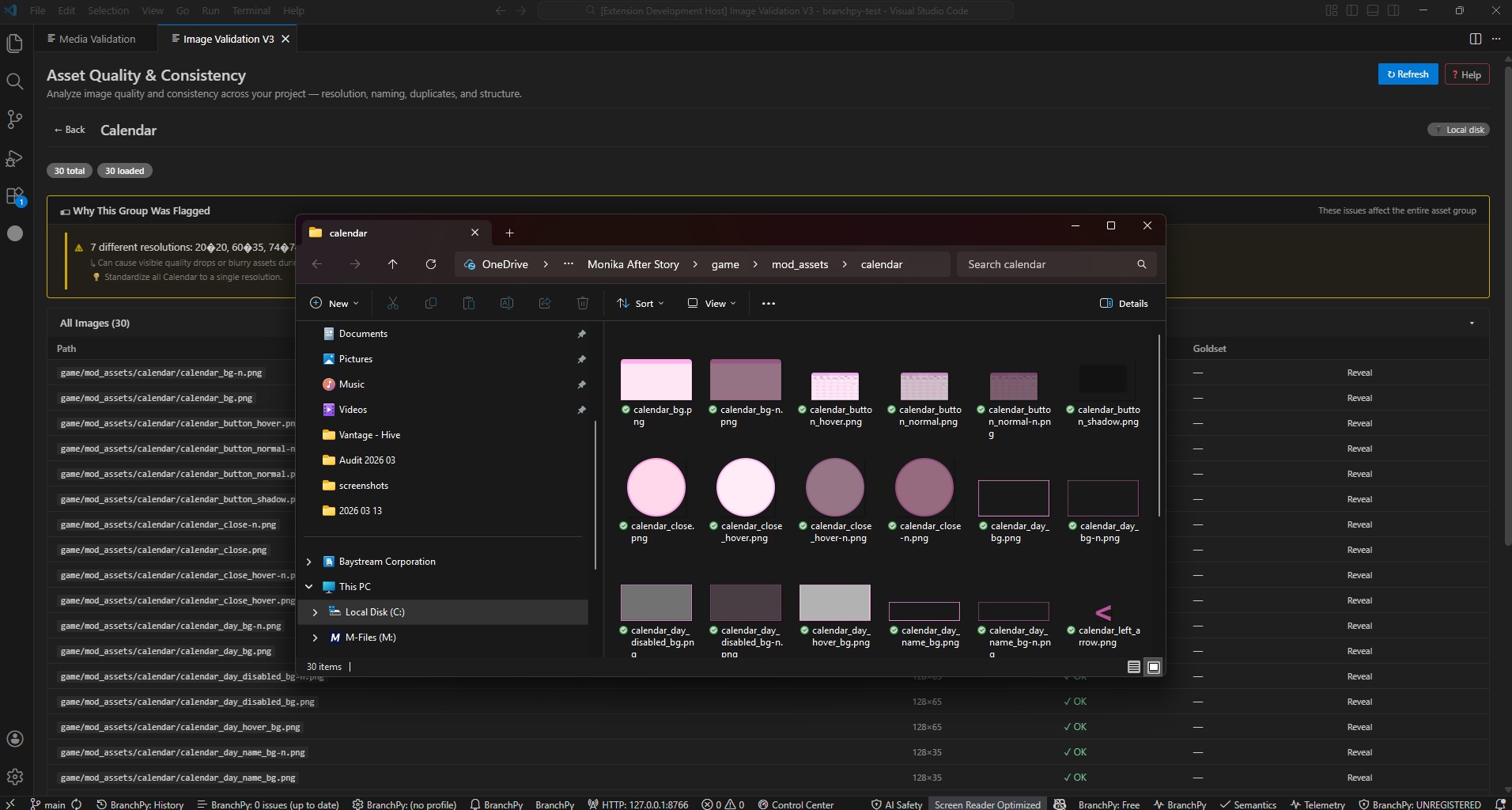
- Reveal — highlights the file in your OS file explorer (Explorer on Windows, Finder on macOS). Use this to inspect or move the file.
- Copy Path — copies the project-relative path to your clipboard (e.g.
game/images/characters/alice_normal.png). Use this for scripting or referencing the file in your project.
Typical workflow
1. Open project, run Analyze
2. Open Image Validation panel
3. Review the summary — note any Warning or Error groups
4. Click a group to open the detail view
5. Read "Why This Group Was Flagged" for group-wide issues
6. Review individual image issues in "Affected Images"
7. Use Reveal to inspect files in Explorer / Finder
8. Fix naming or resolution issues in your art tools
9. Click Refresh to re-scan
Running from the CLI
Image Validation is also available as a standalone CLI command — useful for scripting, CI pipelines, or generating a shareable report without opening VS Code.
# Human-readable summary in the terminal
branchpy --project <path> image-validate

# Machine-readable JSON (consumed by the VS Code panel)
branchpy --project <path> image-validate --json

# Write a self-contained HTML report
branchpy --project <path> image-validate --html

# Write HTML report and open it in your browser immediately
branchpy --project <path> image-validate --open
The HTML report is written to .branchpy/reports/image-validation.html inside your project folder. It is self-contained (no server required) and includes the full group summary, top issues, and per-group detail.
Additional options:
--engine <renpy|unity|godot|unreal|generic>— engine classifier; defaults torenpy.--include-gui— includes engine GUI assets (e.g.game/gui/) which are excluded by default.
Full CLI reference: CLI Reference — image-validate
Goldset reference images
A small subset of images in each group is automatically selected as the goldset — a trusted quality baseline. BranchPy uses goldset images to detect resolution drift and style inconsistencies across the group.
Goldset images are currently selected automatically based on asset characteristics. Manual selection is planned for a future update.
The ⭐ Goldset Only filter on the homepage hides groups that have no goldset reference, letting you focus on groups where a quality baseline exists.
Learn more: Media Validation — for asset inventory (referenced, missing, unreferenced files)
UI screenshots (March 2026)