
Find missing assets, review unreferenced files safely, and avoid deleting engine-managed files.
When to use Media Validation
- Before release/candidate build checks.
- After large art/audio imports.
- During cleanup to remove dead assets safely.
Quick run (CLI)
branchpy --project <path> media --openTypical runtime (approx):
- Small projects: 2-8 seconds
- Medium projects: 10-35 seconds
- Large projects: 30-120 seconds
What Media Validation does
Media Validation scans your project and classifies each media file into one status:
USED: referenced in scripts.UNREFERENCED: found on disk but not currently referenced.MISSING: referenced in scripts but not found on disk. Two sub-types: literal file paths and symbolic Ren’Py references (see below).PROTECTED: engine-managed or policy-protected path; never offered for deletion.
This gives you an accurate inventory before runtime, so problems are found before release.
Missing media: two categories
BranchPy separates missing media into two categories:
Missing file paths — literal media paths referenced in scripts (e.g. game/bg/closet.png) that could not be found on disk. These are broken references that need to be fixed before release. Each entry links directly to the .rpy file and line where the reference appears.
Symbolic Ren’Py references — script references that do not look like physical file paths: image tags (show menu_bg), built-in displayables (black, dissolve), or names defined dynamically at runtime. These are listed separately in the Missing Files tab alongside their source .rpy locations. They are review signals, not automatic errors — the name may be defined elsewhere in the project, built into Ren’Py, or generated at runtime.
Before you run a scan
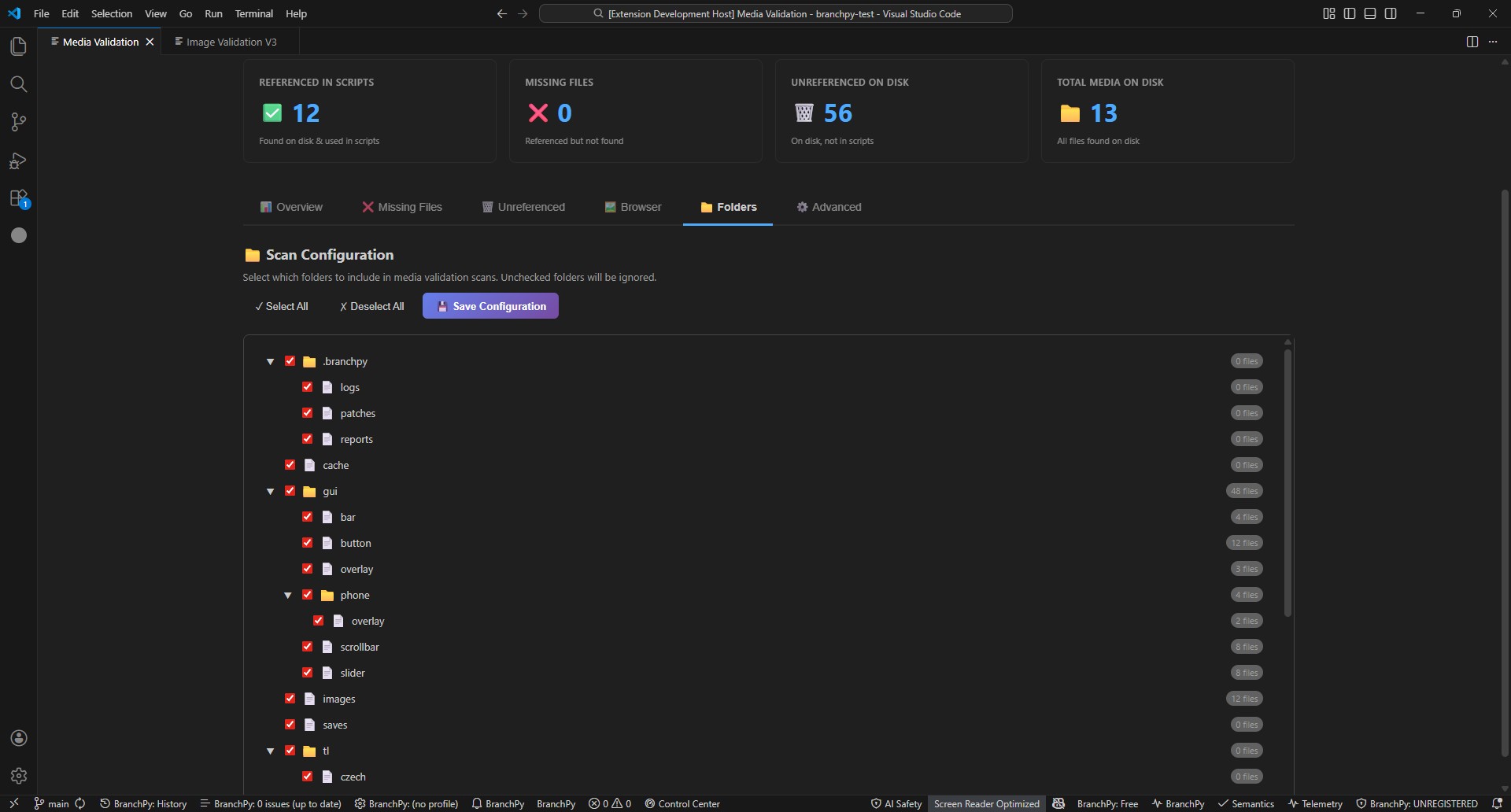
- Open Control Center and select your project.
- Open the Media Validation panel.
- Confirm your assets root (usually
game/) is correct.
Run a full scan
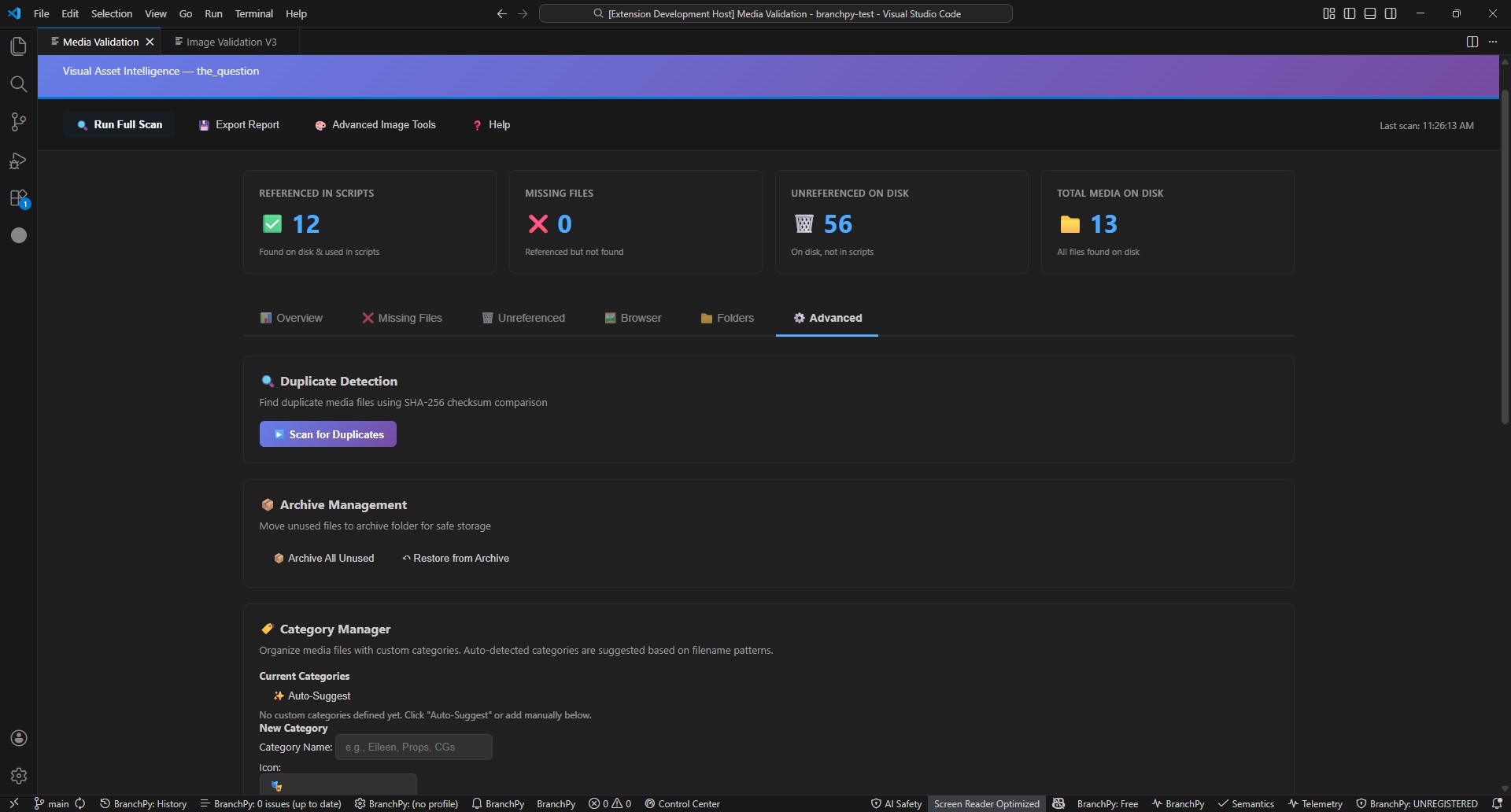
- Click
Run Full Scan. - Wait for completion (you will see status updates while BranchPy runs missing, unused, and referenced scans).
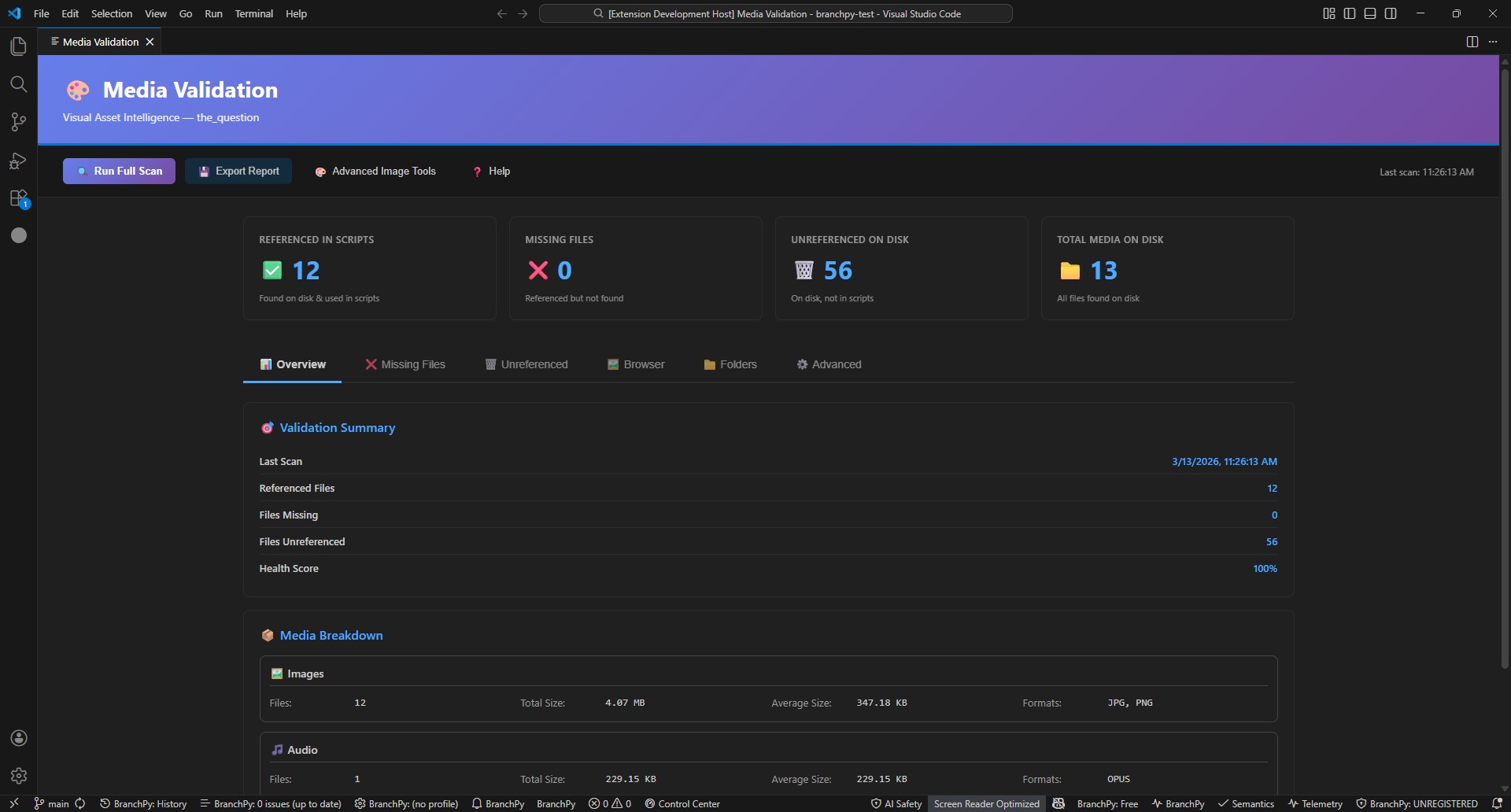
- Review the Overview cards:
- Total media on disk.
- Referenced in scripts.
- Missing on disk.
- Unreferenced on disk.
Understanding unreferenced results (Phase 2A)
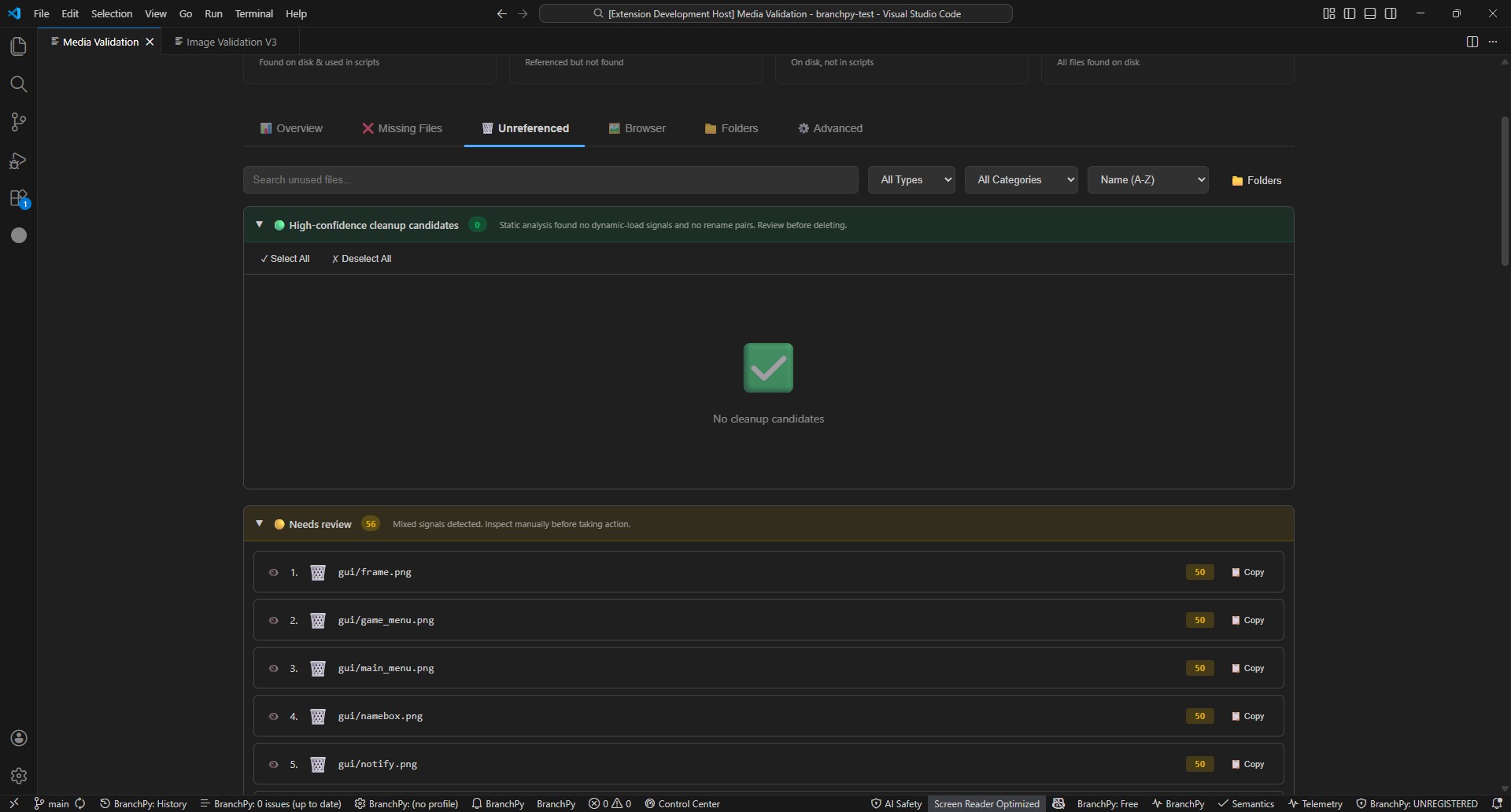
Unreferenced files are scored and grouped into review tiers:
Cleanup Candidate: high-confidence dead weight.Needs Review: mixed signals, inspect manually.Dynamic Risk: likely dynamic/runtime usage, do not delete.
Scoring uses deterministic heuristics (for example age, naming suffixes, dynamic-load tokens, folder density, and rename similarity to missing files).
Review Layer — triaging unreferenced files
After scanning, the Asset Review tab lets you record a decision on every unreferenced file. BranchPy remembers decisions across re-scans.
How it works
- Scan tiers are never overwritten by your decisions. BranchPy recommends; you decide.
- Decisions are stored locally in
.branchpy/media_review_state.json(version-controllable, portable with the project). - The Overview tab shows a Review Progress counter: Reviewed = any bucket assigned; Unreviewed = no decision yet.
Review buckets
Use the Move to dropdown on any item to assign it a bucket:
| Bucket | Meaning |
|---|---|
| Needs review | Default — no decision yet |
| ✅ Keep | Intentional; safe to keep on disk |
| 🧹 Cleanup candidates | You confirm this is dead weight |
| Custom | Any name you define (e.g. “Work in progress”, “Needs art pass”) |
Items assigned a bucket move out of the scan tiers into their own section, keeping the tiers focused on unreviewed items.
Show filter
The Show dropdown above the sections controls which tier and bucket sections are visible at once:
| Filter | Shows |
|---|---|
| Active (default) | All sections except ignored |
| Reviewed | Keep + Cleanup + all custom buckets |
| Unreviewed | Needs review + Dynamic risk |
| Keep / Cleanup / Dynamic risk | That section only |
| Custom category name | That custom bucket only |
Search, type filter, and sort
- Search bar — filters items by filename or path across all visible sections in real time.
- Type filter — show only images, audio, or video.
- Sort — Name A-Z or Z-A, applied per section.
- Sections with no matching items collapse automatically. Badges show
visible / totalwhen a filter is active.
Bulk actions
Select multiple items using the checkboxes, then use the bulk action bar to move them all to a bucket at once. Protected and Dynamic Risk items cannot be bulk-selected.
Custom categories
Create categories from the Move to dropdown → + Create category…. Rename or delete them via 📋 Manage categories…. Categories persist with the project and survive re-scans.
Protected-path safety
BranchPy protects known engine-managed paths such as:
gui/renpy/common/launcher/fonts/
Protection is enforced in two layers:
- Protected files do not expose deletion checkboxes in the UI.
- Delete handling strips protected paths even if they were somehow selected.
You can also define project-specific protected path prefixes in branchpy.config.json:
{
	"mediaValidation": {
		"protectedPaths": ["game/cgs/", "game/music/licensed/"],
		"dynamicRiskPatterns": ["secret", "ending", "variant"]
	}
}
Typical workflow
- Fix
MISSING(literal file paths) first — broken references cause runtime errors. - Check
Symbolic Ren'Py references— verify whether each name is defined elsewhere or can be safely ignored. - Check rename candidates where an unreferenced file likely matches a missing reference.
- In Asset Review, use Move to → ✅ Keep for any unreferenced file you know is intentional (e.g. future content, engine-adjacent files).
- Review
Needs ReviewandDynamic Riskitems manually; assign a bucket or leave for later. - Mark confirmed dead files as 🧹 Cleanup candidates.
- Use bulk delete only after your Cleanup bucket is fully reviewed.
- Re-run scan to verify clean state.
Example output pattern:
Media Validation complete

missing_images:
	- game/cg/ending.png
	- game/gui/save_button.png

unreferenced_images:
	- game/gui/button_idle.png
	- game/gui/button_hover.png
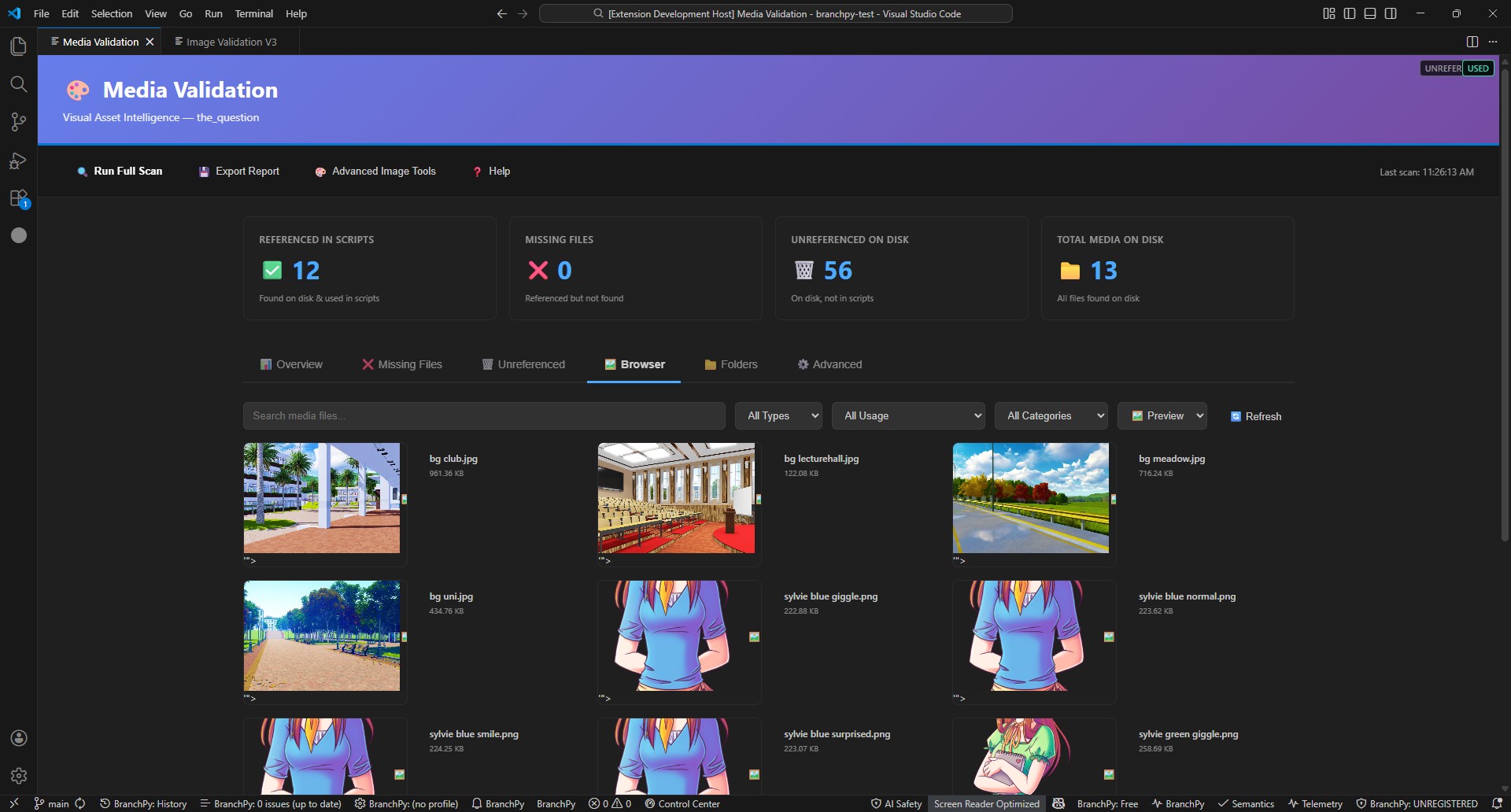
Browser and filtering tips
- Use the usage filter (
All,Referenced,Unreferenced,Missing) to focus review. - Open files/folders directly from results when triaging.
- Use the
Advanced Image Toolsaction for image-validation workflows when needed.
UI screenshots (March 2026)
Troubleshooting
- Referenced count looks lower than expected: Ensure the correct project root is selected and scan completes without parser errors.
- Too many dynamic-risk files:
Review
dynamicRiskPatternsinbranchpy.config.jsonand narrow custom tokens. - A file should be protected but is not:
Add its parent path to
mediaValidation.protectedPathsand re-run.